The short version
- Start from the cleanest source you have. A PDF exported from notation software beats a scan, and a scan beats a photo.
- Keep only the page you need. The analyzer works on one page per run, and a page with fewer lines is read more completely.
- Scan flat, straight and evenly lit. All four edges in the frame, no shadows, no curve from the book spine.
- Check the file size. Uploads are limited to about four and a half megabytes, so export just that page if the file is bigger.
- Upload, pick the page and check the preview. Nothing is saved until you accept the result.
What the analyzer does with your file
You upload a photo, an image or a PDF. If the PDF has more than one page, you choose which page to analyze, and that one page is turned into an image before the AI reads it. The AI then finds each staff, reads the notes and the chord symbols written above them, and draws what you asked for: red note names, blue scale degrees, guitar TAB or bass TAB.
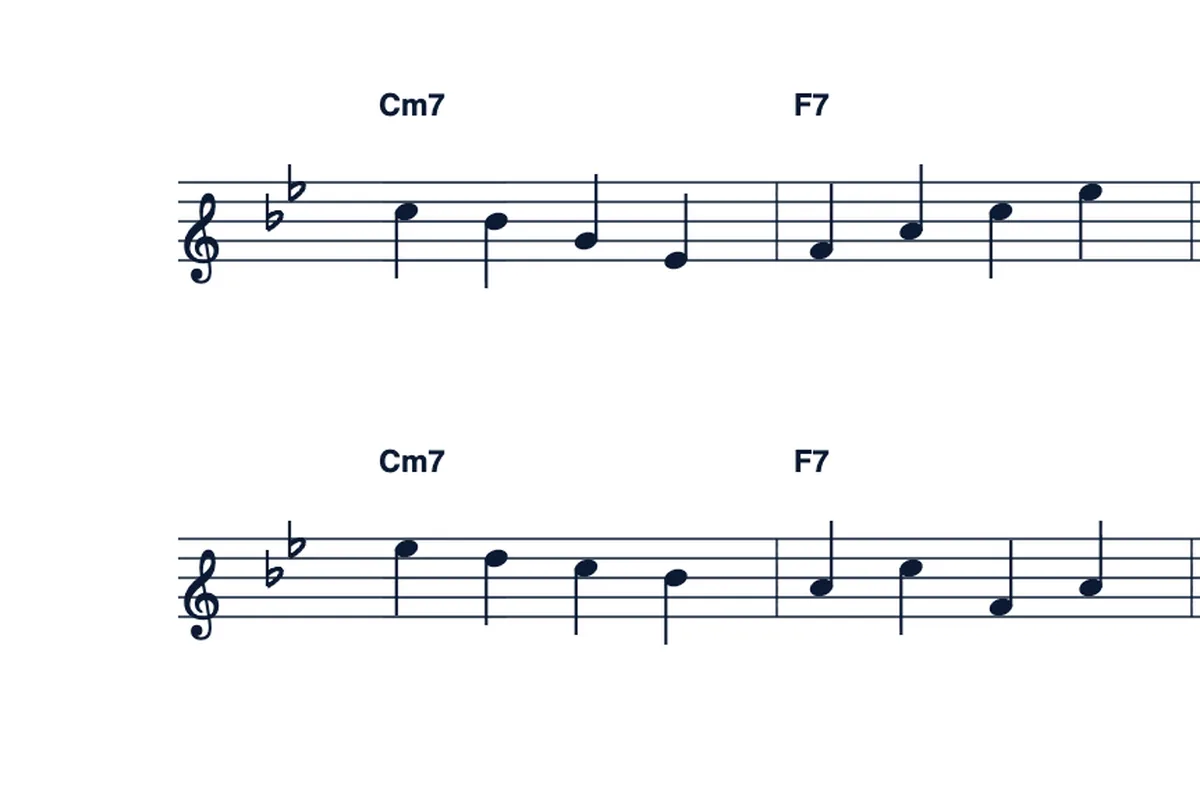
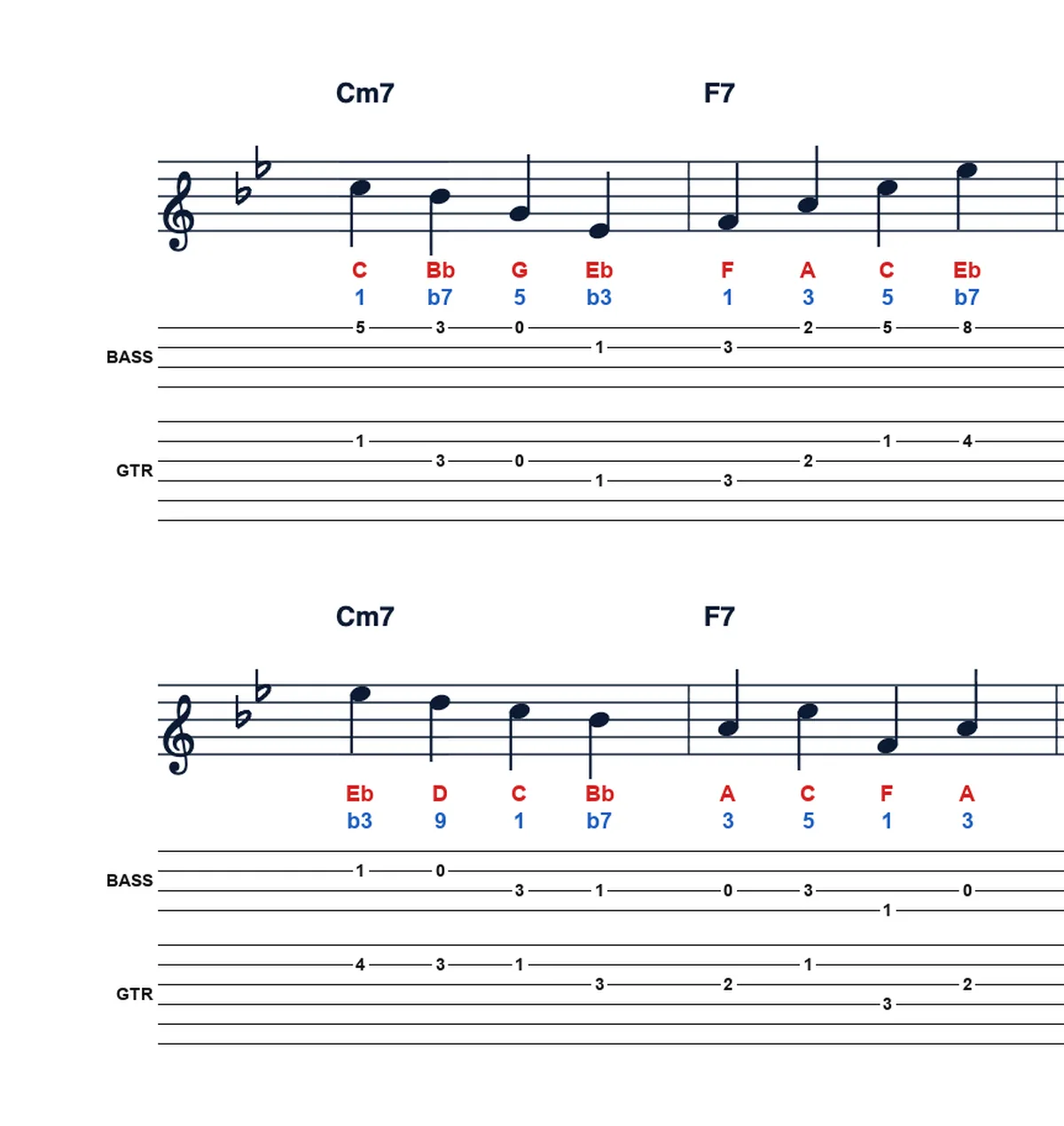
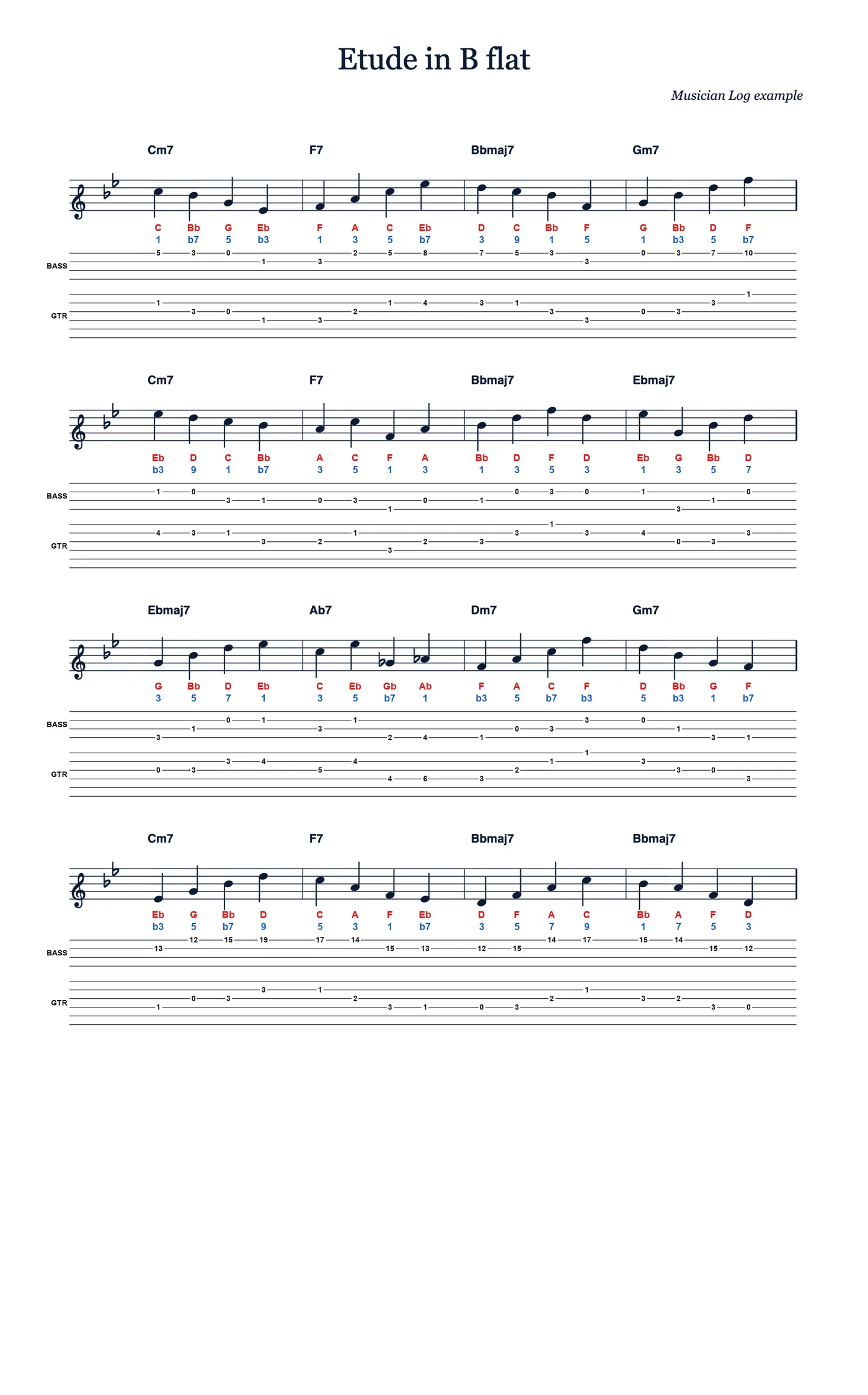
So whatever you upload, the AI ends up looking at a picture of a single page. Everything on that page competes for its attention: the notes you care about, but also stains, pencil marks, a shadow across the top line, or a second tune squeezed underneath. A clean page gives it less to get wrong.
Start from the cleanest source
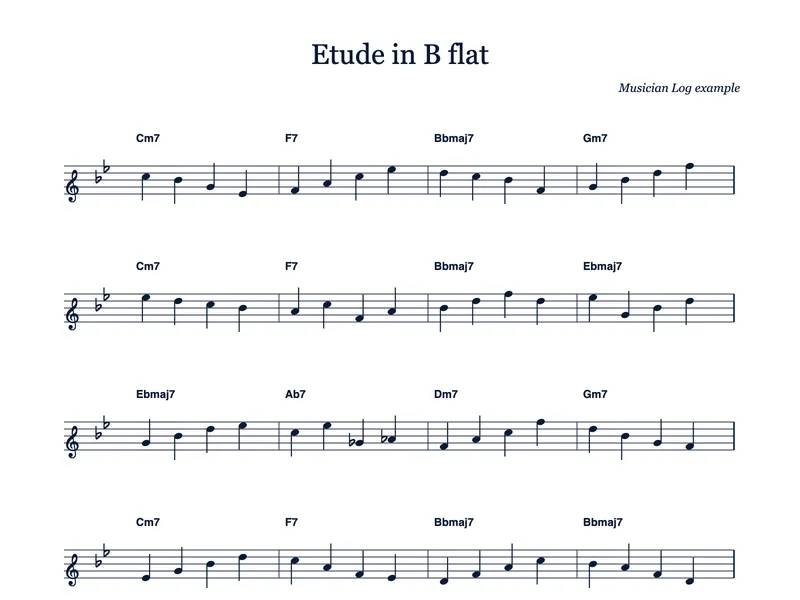
If the music exists as a file from notation software, export or print that page straight to PDF. The notes are crisp, the staff lines are perfectly straight and there is no paper texture at all. This is the best input you can give the analyzer, whether it is a guitar solo you wrote out, a bass line, a piano lead sheet, a vocal part, a sax transcription or a violin etude.
Printed notation reads more reliably than handwriting. If your chart is handwritten, it can still work, but check the preview closely, especially accidentals and notes on ledger lines.
Chord symbols matter for scale degrees, because each degree is read against the chord written above that bar. If the chords are missing from the page, write them in clearly before you scan, or choose note names only.
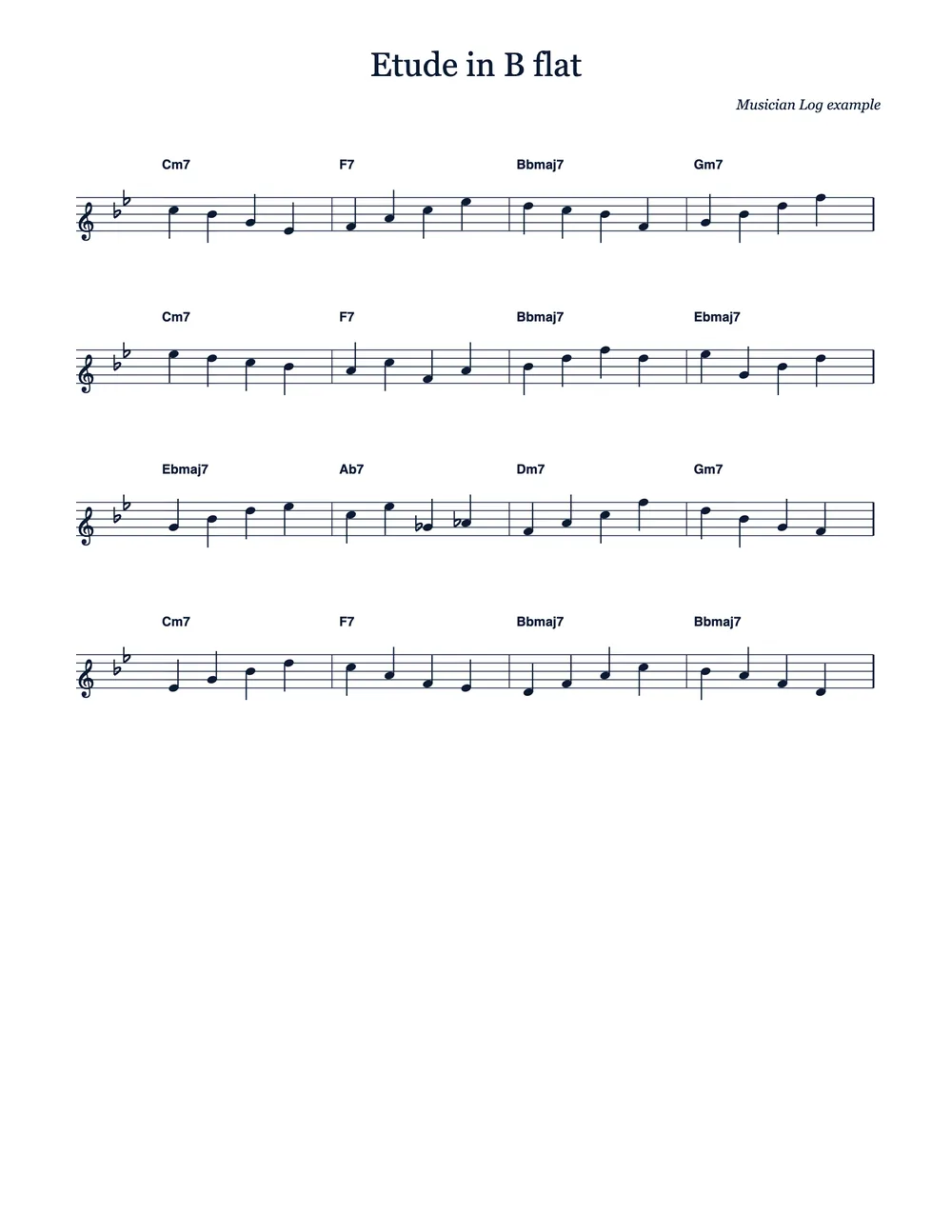
One page, and not too crowded
The analyzer handles one page per run. For a long PDF, you do not need to split the file yourself: pick the page in the analyzer. But if the file is too big to upload, use your computer’s print dialog, choose Save as PDF and print only the page range you need. The result is a small file with just that page.
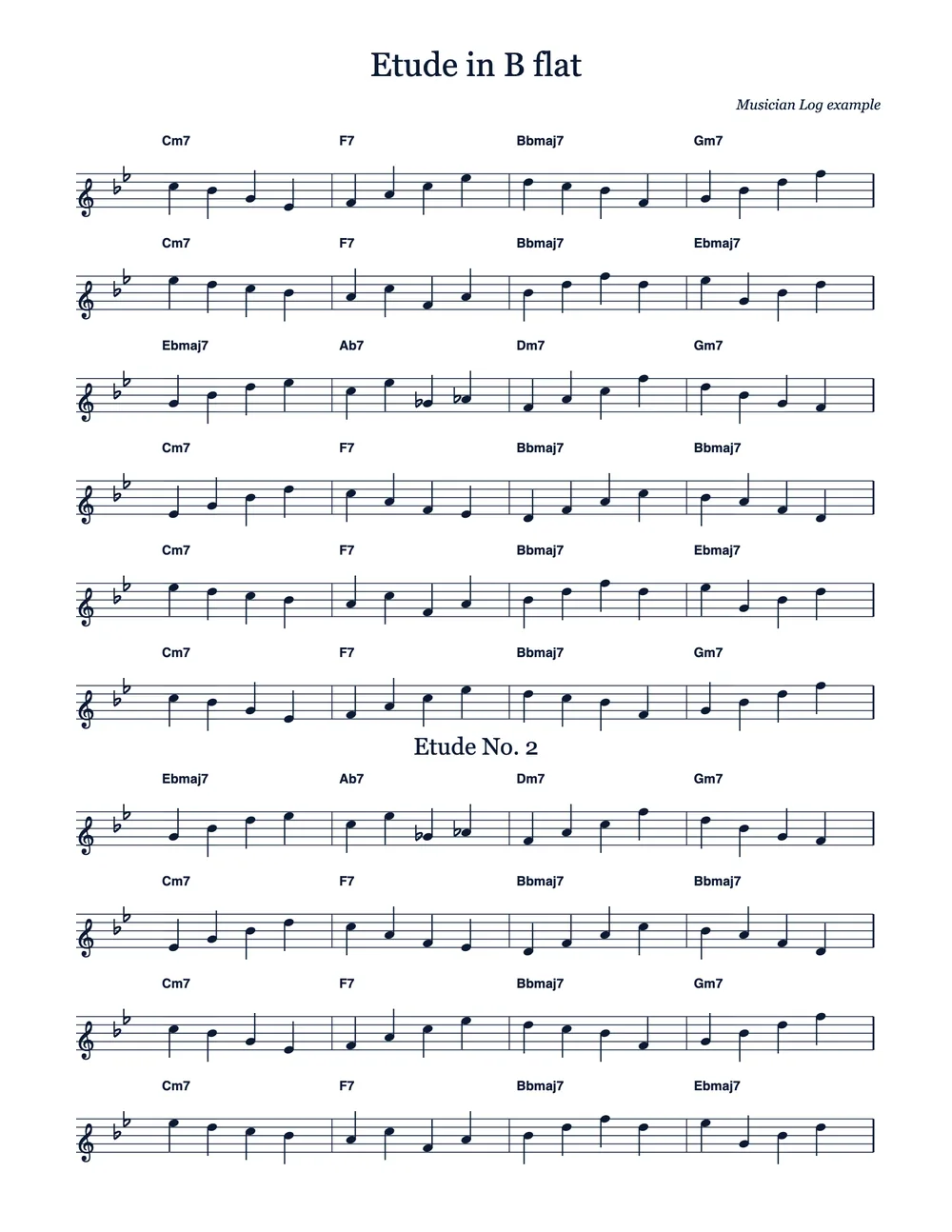
A page with eight or ten lines of music asks a lot of a single run. Each analysis has a fixed amount of room, and on a very full page it can run out before the last lines, so you get a partly annotated page. When that happens, the analyzer tells you and you can keep what it finished or try again. If the passage you are working on is only a few lines, a page with just those lines is read faster and more completely.
Scanning a paper page well
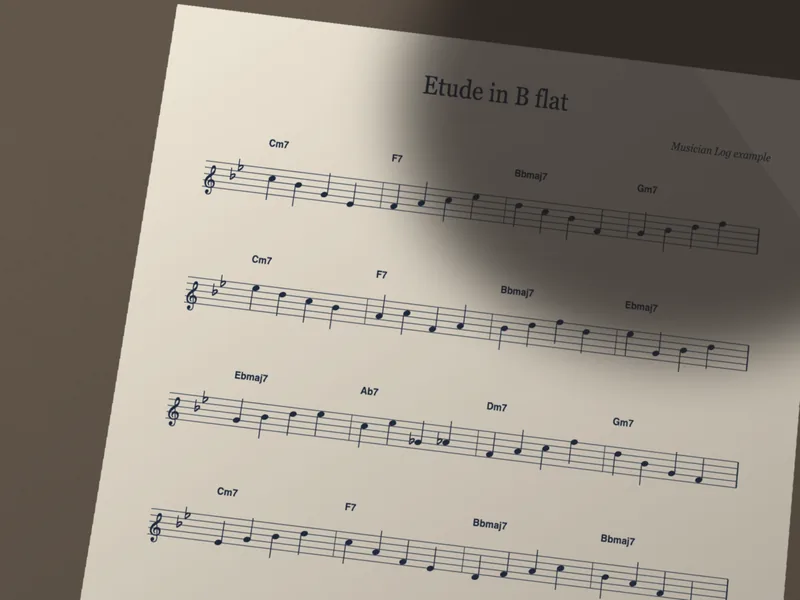
Most phones have a document scanner in the camera or notes app. Use it rather than a plain photo: it finds the page edges, flattens the perspective and evens out the light. Put the page on a dark, flat surface, hold the phone straight above it and make sure all four corners are in the frame.
Light the page from the side or from a window, not from directly above, so your own hand and phone do not cast a shadow over the staff. Press a book open with a flat object, or copy the page first, so the lines near the spine do not curve. Black and white mode usually gives the cleanest result, since it removes paper color and faint pencil.
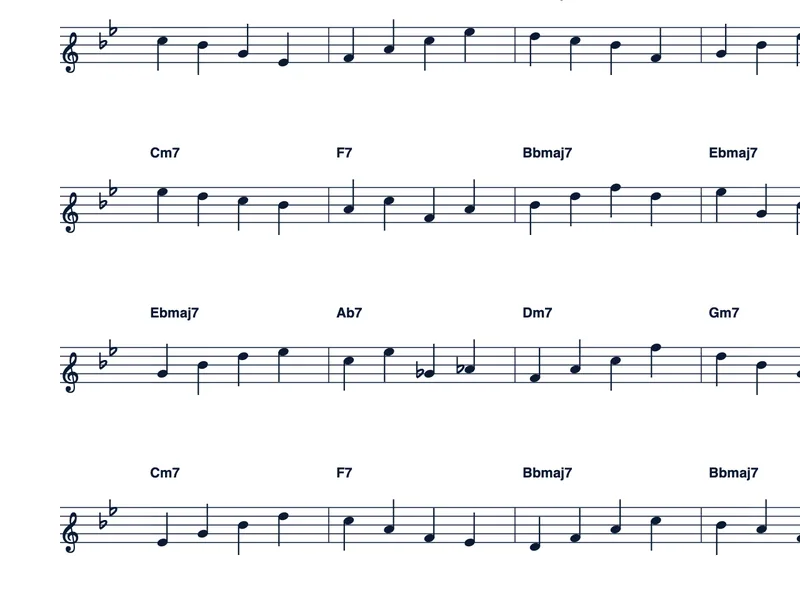
Fingerings, bowings, breath marks and your own pencil notes are useful to you, but they sit right next to the notes. If the analyzer misreads a crowded bar, scan a clean copy without them and keep your marked-up copy as a separate attachment on the snippet.
Check the preview, then keep it
An analysis takes from about a minute to four minutes, depending on the page. The result appears as a preview first. Read it against the original the way you would check a friend’s transcription: a wrong accidental or a skipped note is easy to spot when you play through it slowly.
If it looks right, accept it and the annotated page is saved on the snippet, next to your videos and notes. If it does not, discard it, improve the page with the steps above and run it again. TAB is drawn for guitar and bass only. Note names and scale degrees work for any pitched part, and the analyzer does not read drum notation.